Docs · Get started
Style profiles
Learn a channel's editing style from its videos, read what the profile measured, and tune it.
A style profile is a set of measurements taken from real videos: which moments a channel shows, in what order, for how long, how fast it cuts, and how much of it is someone talking to camera. The rough cut is planned against these numbers. No footage or music from the channel ends up in your cut.
Make a profile from a channel
- Go to Profiles and press New style profile.
- In Channel URL or folder, paste a public YouTube channel URL (for example
https://www.youtube.com/@yourchannel), or the path to a folder of your own finished videos. - Pick a Genre: Wedding, Sports vlog or Golf vlog. The genre sets the moment types Sift looks for, such as vows and first dance for weddings.
- Optional:
- Name. Defaults to the channel’s name.
- Supplementary channels. More channels in the same style, given lower weight; the main channel wins where they disagree.
- Shot list PDFs. Your own shot lists. They guide the moment vocabulary; the channel still decides what matters.
- Press List videos. Sift lists the channel’s videos so you can choose which ones to learn from.
Pick the videos
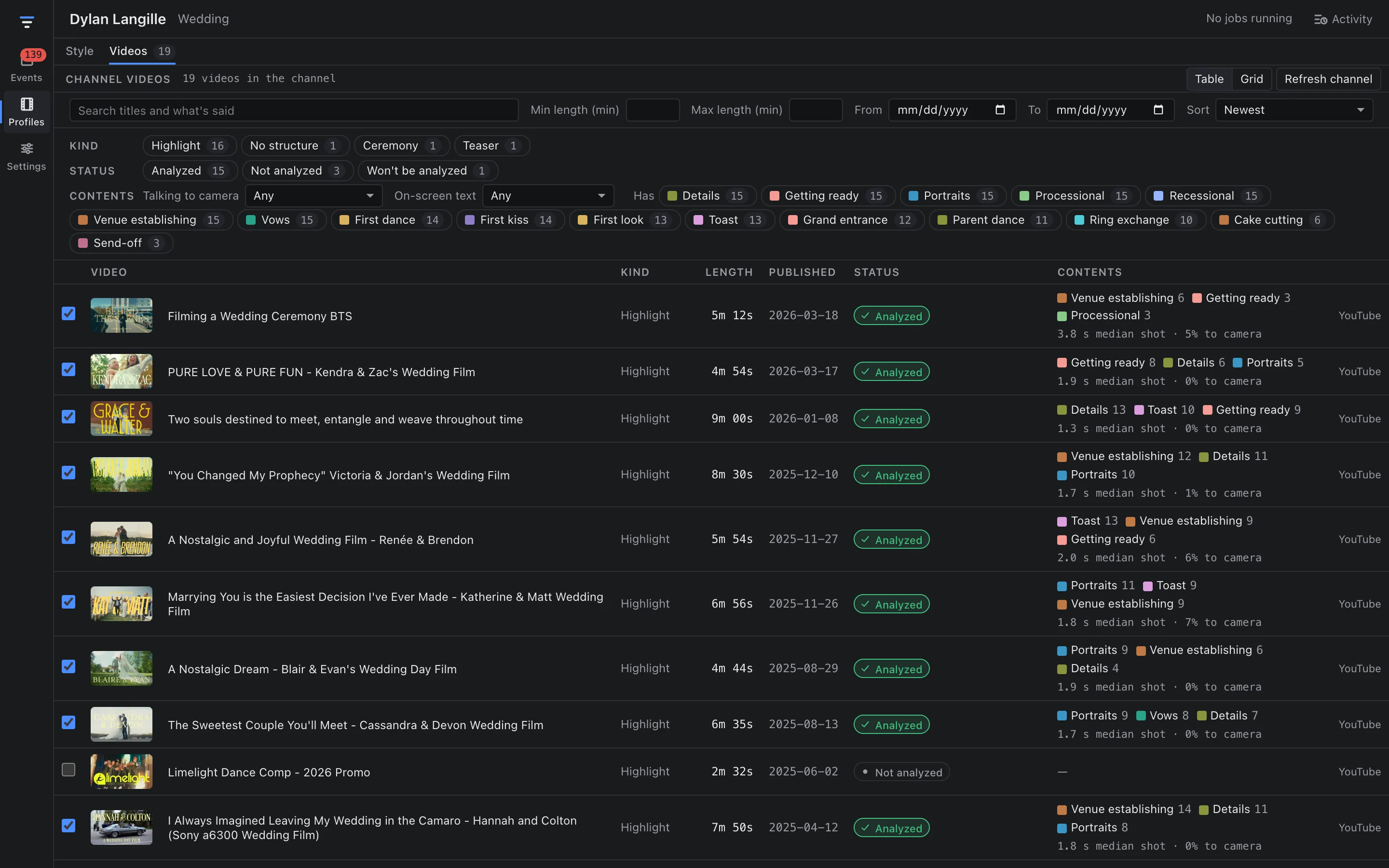
Filter by length, publish date and keywords, and include, exclude or only use Shorts. Pick the videos that look like the edit you want. Ten to twenty is a good start. The footer shows an estimate (“≈ N shots · X tokens · $Y”) against the profile’s budget cap. Press Run.
The run downloads each video at 720p or less, finds its cuts, grabs a keyframe per shot, transcribes it on your Mac, labels each shot with the vision model, computes the profile and writes style notes. The stages are listed with progress: Download, Find cuts, Grab keyframes, Transcribe, Label shots, Compute profile, Write notes.
What the profile captures
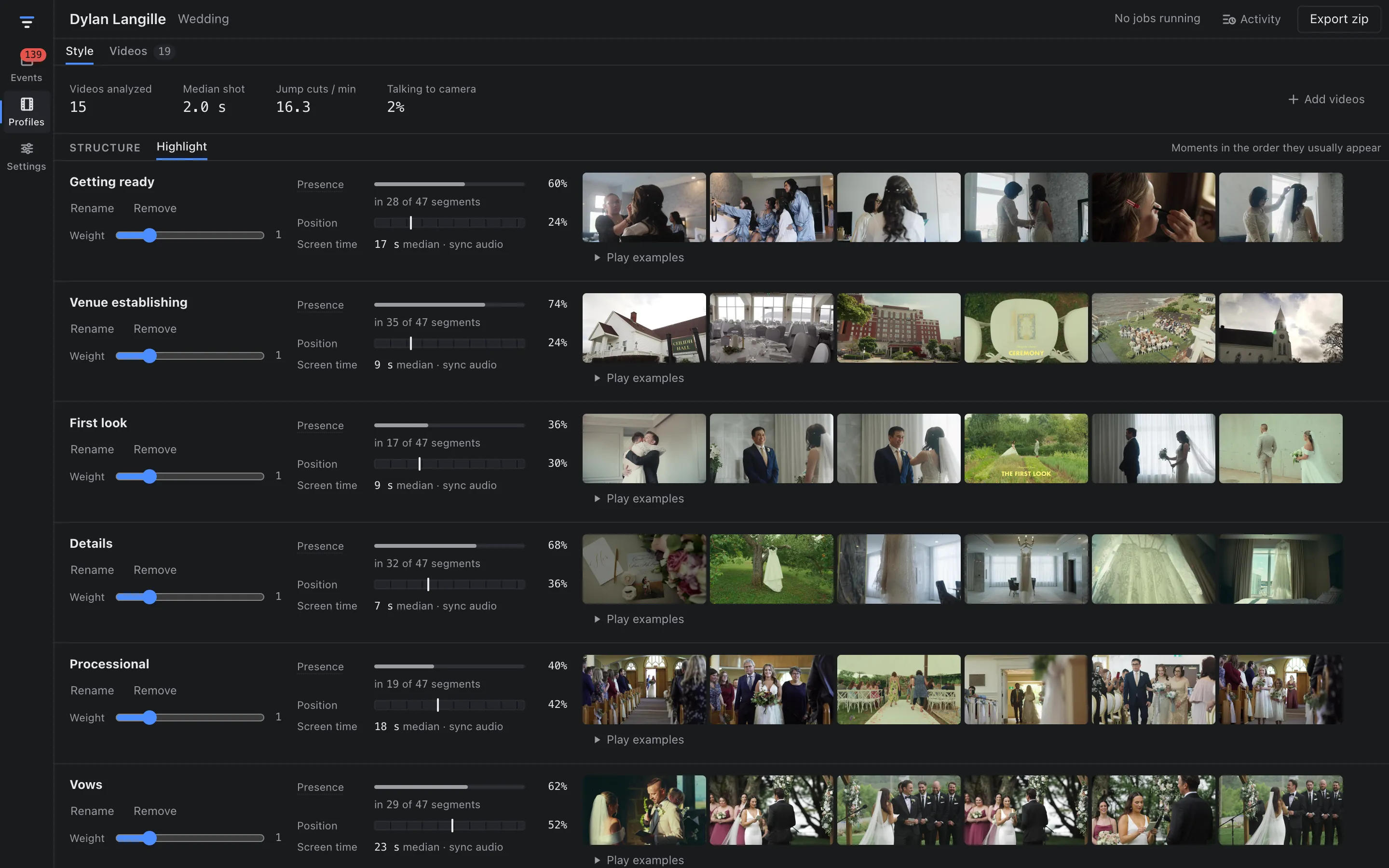
At the top of the Style tab:
- Videos analyzed
- Median shot: the typical shot length, in seconds.
- Jump cuts / min: cuts within the same angle, per minute.
- Talking to camera: the share of screen time where someone speaks to the lens.
Under Structure, one tab per kind of video the channel makes (for weddings: Highlight, Ceremony, Teaser; for golf: Long episode, Cutdown, Short; for sports vlogs: Long vlog, Short). Each tab lists moments in the order they usually appear. Each moment has:
- Presence: how many of the channel’s segments show it, for example “in 28 of 47 segments”.
- Position: where in the video it usually falls.
- Screen time: the median time it gets, and whether it plays under its own sync sound or under music.
- Example frames, and Play examples to watch those moments in the source videos.
Style notes are a short written summary from the top model. You can edit them.
Tune it
- Weight raises or lowers how much a moment counts when the rough cut is planned.
- Rename a moment, or Remove it from the profile. Removed moments keep their labels, so a re-run can bring them back.
- Add videos to learn from more. Videos already analyzed aren’t redone.
Read one video’s breakdown
On the Videos tab, open any analyzed video to see its breakdown: a timeline of its shots and moment bands, the model’s label for each shot (moment, confidence, talking to camera, on-screen text, jump cut, transcript), and a comparison with the profile’s typical values for length, shots, moments, median shot, jump cuts per minute, talking to camera and on-screen text. Click a moment band to play it, or a shot to see what the model saw.
Share a profile
Export zip on the profile page saves the profile to a file. Import… on the Profiles list loads it on another Mac.
Examples
- A wedding highlight channel. 15 highlight films of 5–9 minutes gave a profile with a 2.0 s median shot, 16.3 jump cuts per minute, 2% talking to camera and a Highlight structure that opens on getting ready and venue shots.
- A golf channel. 18 videos, about seven hours of footage, made a Golf vlog profile for $7.34 with the default models.