Docs · Cut an event
Events
Create an event from a folder of cards, confirm the devices board, run the pipeline and watch the spend.
An event is one shoot: a wedding, a match, a trip. It points at the folder where you dumped the cards, and everything Sift learns about that footage lives in the event. Sift reads your footage and doesn’t change it. The only thing it writes beside the footage is an _organizer/ export folder, and only if you choose that as the output.
New event from a folder
Go to Events → New event and fill in Details:
- Event name, and a Genre (Wedding, Sports vlog or Golf vlog).
- Style profile: the channel style for the rough cut. You can pick or change it later.
- Media folder: the folder of card dumps. Subfolders are fine.
- Start date and End date: the days of the shoot.
- Output folder (optional): where the export goes. Empty uses your default from setup.
- Copy media into the output folder: gather the footage next to the project on export. See Export.
- Budget cap (USD) for this event, and the Transcript language (detect automatically, or pick one).
Press Create and scan. Sift scans the folder, checks each file, and groups the files by device.
What it reads
- Video: MP4, MOV, M4V, MXF, MTS, M2TS, AVI, MKV.
- Audio: WAV and BWF, MP3, M4A, AIF/AIFF.
- Timecode from the files and from Sony XML sidecars; BWF time references from recorders.
- Camera RAW (BRAW, R3D, ARW, CR2, CR3, DNG, NEF, ARI, INSV) is listed as unsupported. Transcode those clips first if you need them.
- Sidecar and proxy files (THM, LRF, LRV, Sony and Panasonic proxy folders) are ignored.
The devices board
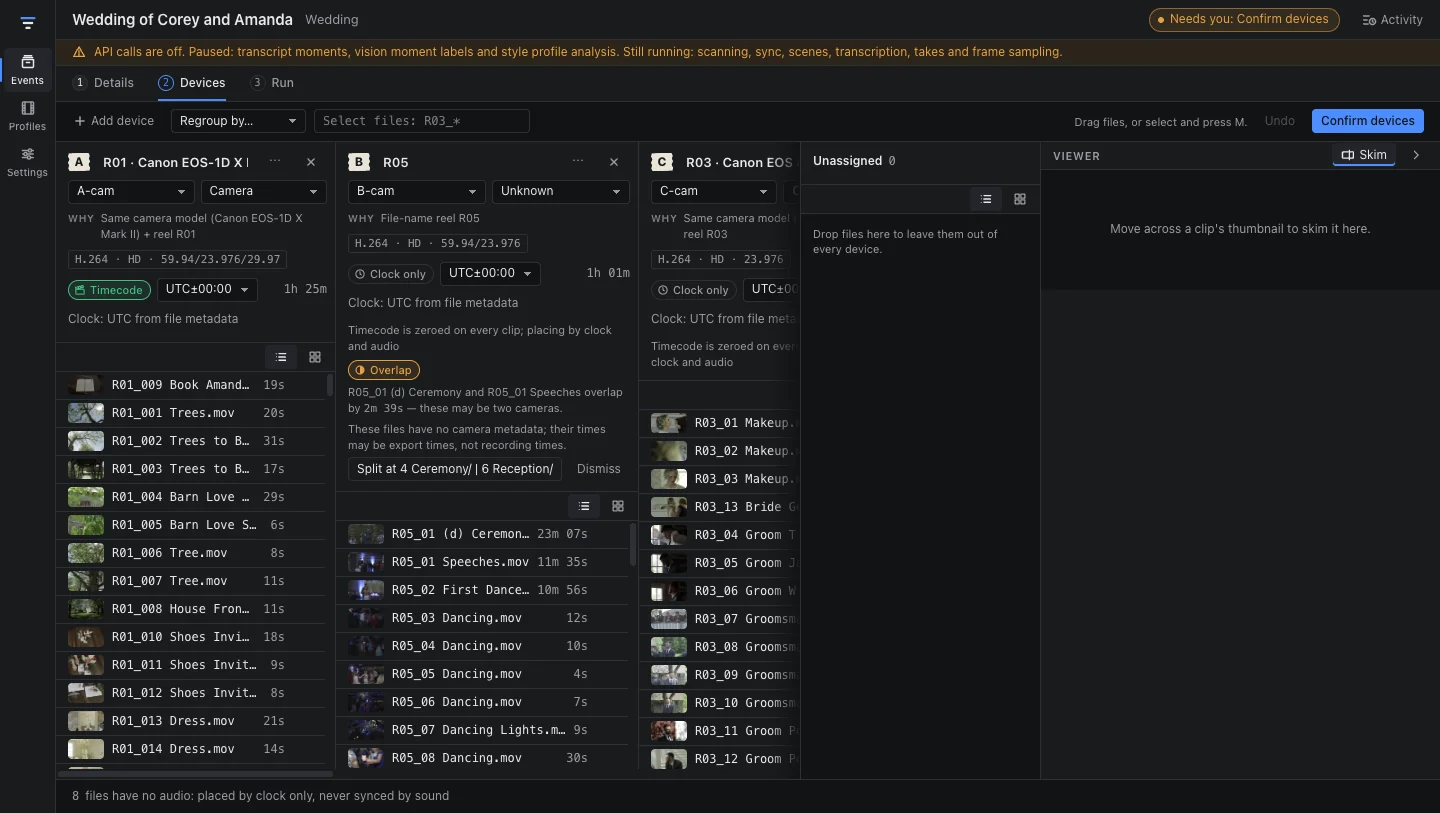
Each device is a column headed by its tape label. Cameras get A, B, C in role order; recorders get REC, wireless mics LAV, drones DR, phones PH and body-mounts BM. Each column shows:
- WHY it was grouped: the camera model and serial, the reel prefix in the file names (R01_, A001C002), a recorder’s name, or a folder like
A_CAM. - The role (A-cam, B-cam, C-cam, Static, Main vlog cam, Body-mount, Drone, Audio recorder, Wireless mic, Other) and the kind of device.
- The format, a Timecode or Clock only badge, the clock’s time zone, and the total length.
- Warnings, such as two cameras whose clips overlap in time and may need a Split.
To fix the grouping:
- Drag files between columns, or select them and press M to move them.
- Regroup by camera metadata, file-name reel, or folder.
- Select files by name pattern, such as
R03_*. - Split a device, Merge two, or Add device.
- Drop files on Excluded files to leave them out of every device.
- Press Space on a file to open it in quick look, and ⌘Z to undo.
When the board is right, press Confirm devices.
Run
The Run step shows the estimate (“N frames to label · ≈ X tokens · $A of $B cap”) and the budget cap. Press Run.
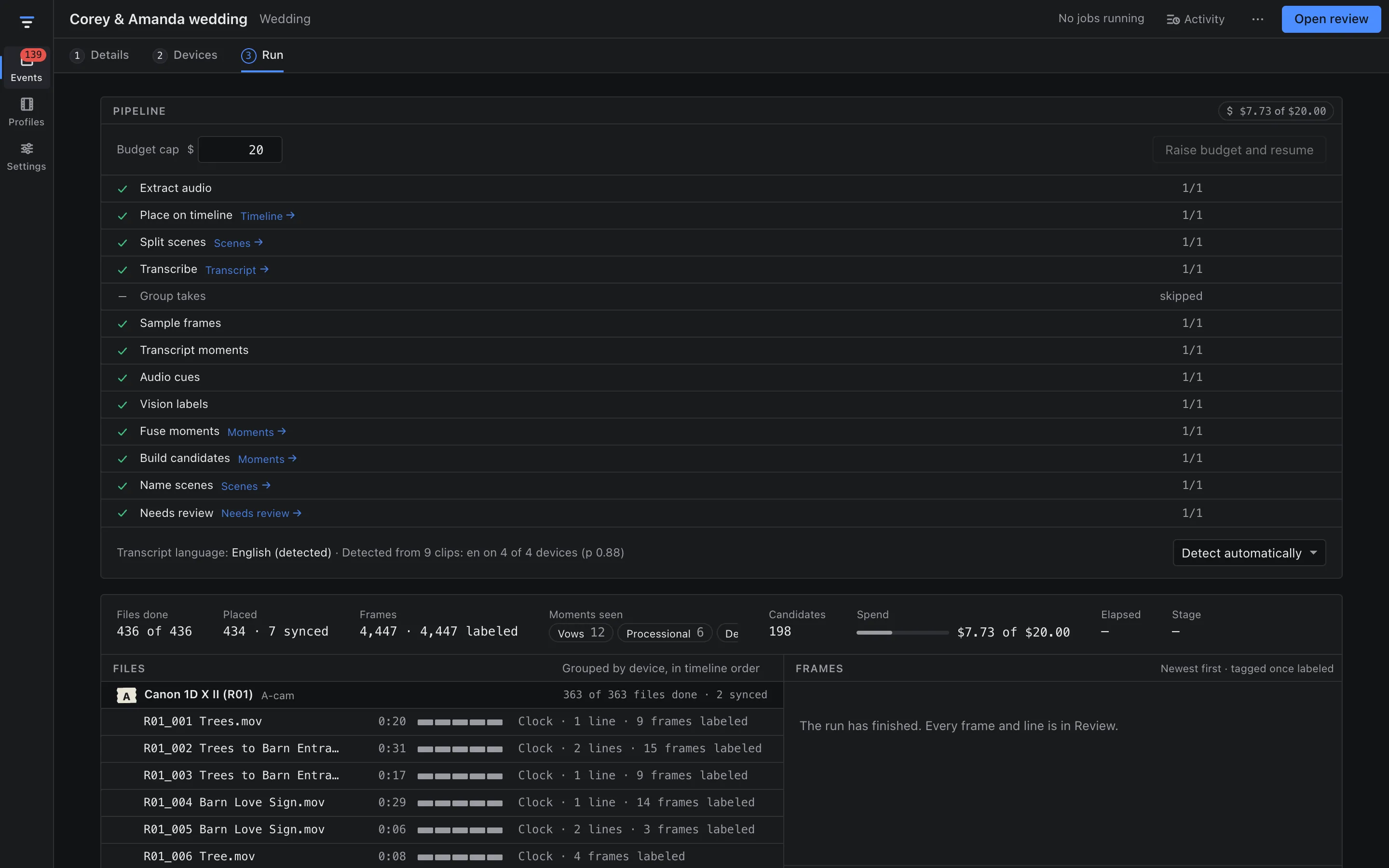
The stages run in order:
| Stage | What happens |
|---|---|
| Extract audio | Audio from every file, for sync and transcription |
| Place on timeline | Timecode, then audio sync against overlapping devices, then camera clocks |
| Split scenes | Shot boundaries and the parts of the day |
| Transcribe | Whisper, on your Mac |
| Group takes | Repeated takes of the same line (vlog genres) |
| Sample frames | Still frames for labeling |
| Transcript moments | The text model marks moment lines in the transcript |
| Audio cues | Cheering, applause and other sound cues, on your Mac |
| Vision labels | The vision model labels the sampled frames |
| Fuse moments | Transcript, sound and vision evidence become moments |
| Build candidates | Each moment gets candidate clips from different devices |
| Name scenes | The master timeline’s parts get names |
| Needs review | Everything that needs you goes to Review |
Stage names that finish become links (Timeline, Scenes, Transcript, Moments, Needs review). Below the stages, per-file rows show progress, and the frames panel shows each frame as it is labeled.
If a stage fails, fix the cause shown and run again: it resumes at that stage, and finished work is kept.
Costs
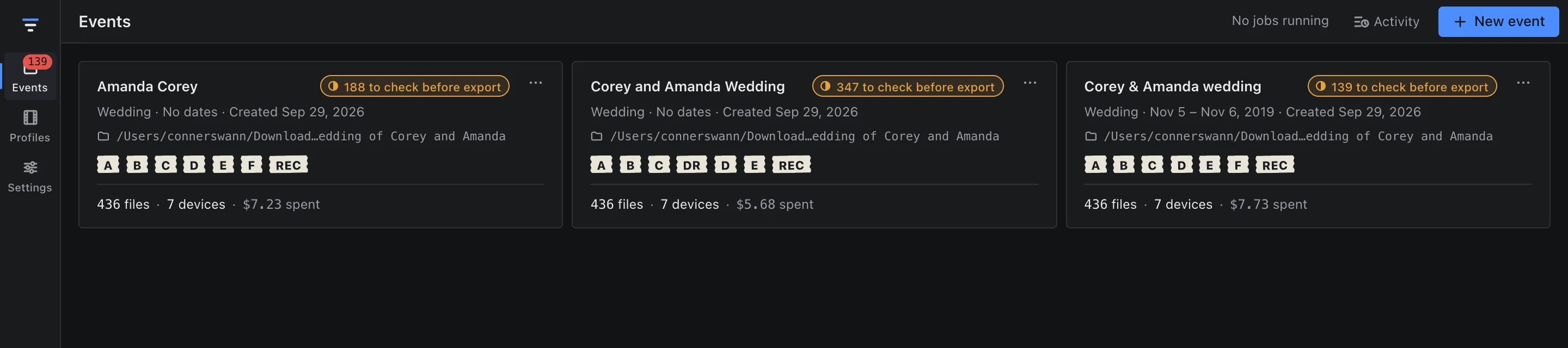
The spend badge in the panel header shows “$spent of $cap” and changes colour near the cap. Each event card on the Events list shows its total, such as “436 files · 7 devices · $7.73 spent”. See API keys & costs for typical numbers.
Delete an event
Open the event’s menu and choose Delete event…. Sift removes the event’s own data: placements, transcripts, moments, review items, rough cuts and cached previews. Your footage and exported files are not touched.