Docs · Cut an event
Review
The goal bar, sync issues, Listen, the playhead and angles, J/K/L, and choosing candidates for Selects.
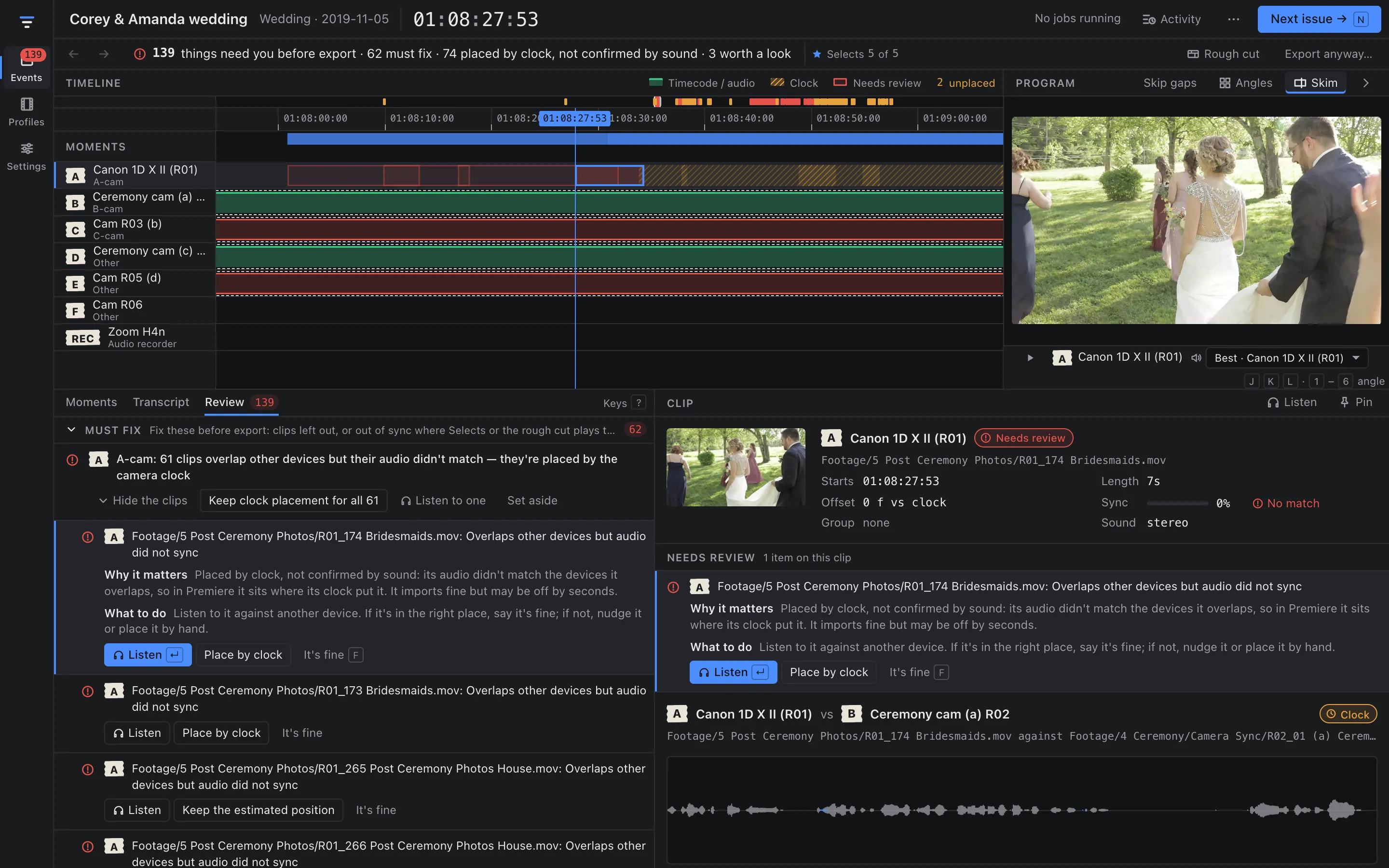
Review is where you check Sift’s work before it goes to Premiere. It has one goal: get the count in the goal bar to zero.
The goal bar
The bar under the title is the whole job in one line, for example:
139 things need you before export · 62 must fix · 74 placed by clock, not confirmed by sound · 3 worth a look
- Must fix: problems that would break the export or put Selects or the rough cut out of sync, such as clips that didn’t sync where their sound is used, missing files or a device you haven’t confirmed.
- Placed by clock, not confirmed by sound: clips placed by their camera’s clock because their audio didn’t match anything. They import fine, but may be off by seconds.
- Worth a look: things that are probably fine.
Press N (or Next issue) to go to the next item, and ⇧N to go back. When the count reaches zero, the bar reads Everything’s checked — export to Premiere. You can still export before that with Export anyway….
The bar also shows Selects N of M: how many of the moments your style expects have a clip chosen for Selects. Click it for the Selects checklist.
Work an item
Each item in the Review tab says what happened, Why it matters and What to do, with buttons for the fixes that apply:
- Listen (Enter): check the sync by ear. See below.
- Place by clock or Keep the estimated position: accept where it is.
- It’s fine (F): resolve the item and move to the next.
- Place manually…: set the position yourself.
Items that repeat across a whole device are grouped: “A-cam: 61 clips overlap other devices but their audio didn’t match”, with Keep clock placement for all 61, Listen to one and Set aside. Every fix goes into the Activity panel and can be undone with ⌘Z.
The kinds of item you may see: Unsupported files, Unreadable files, Duplicates, Variable frame rate drift, Didn’t sync, Clock looks wrong, Timecode disagrees with audio, Drift over one frame, Expected moments missing, Budget cap reached, Labeling failed, Device not confirmed, Missing from the media folder, and Placed by clock.
Sync issues and Listen
Select a clip to see its sync detail: its waveform over the reference device’s, the offset (for example “−135 f vs clock”), and a Sync confidence meter. Nudge it with [ ] by a frame or ⇧[ ⇧] by ten, and Pin it to keep that offset through re-runs.
Listen plays the clip against another device over the same stretch of time.
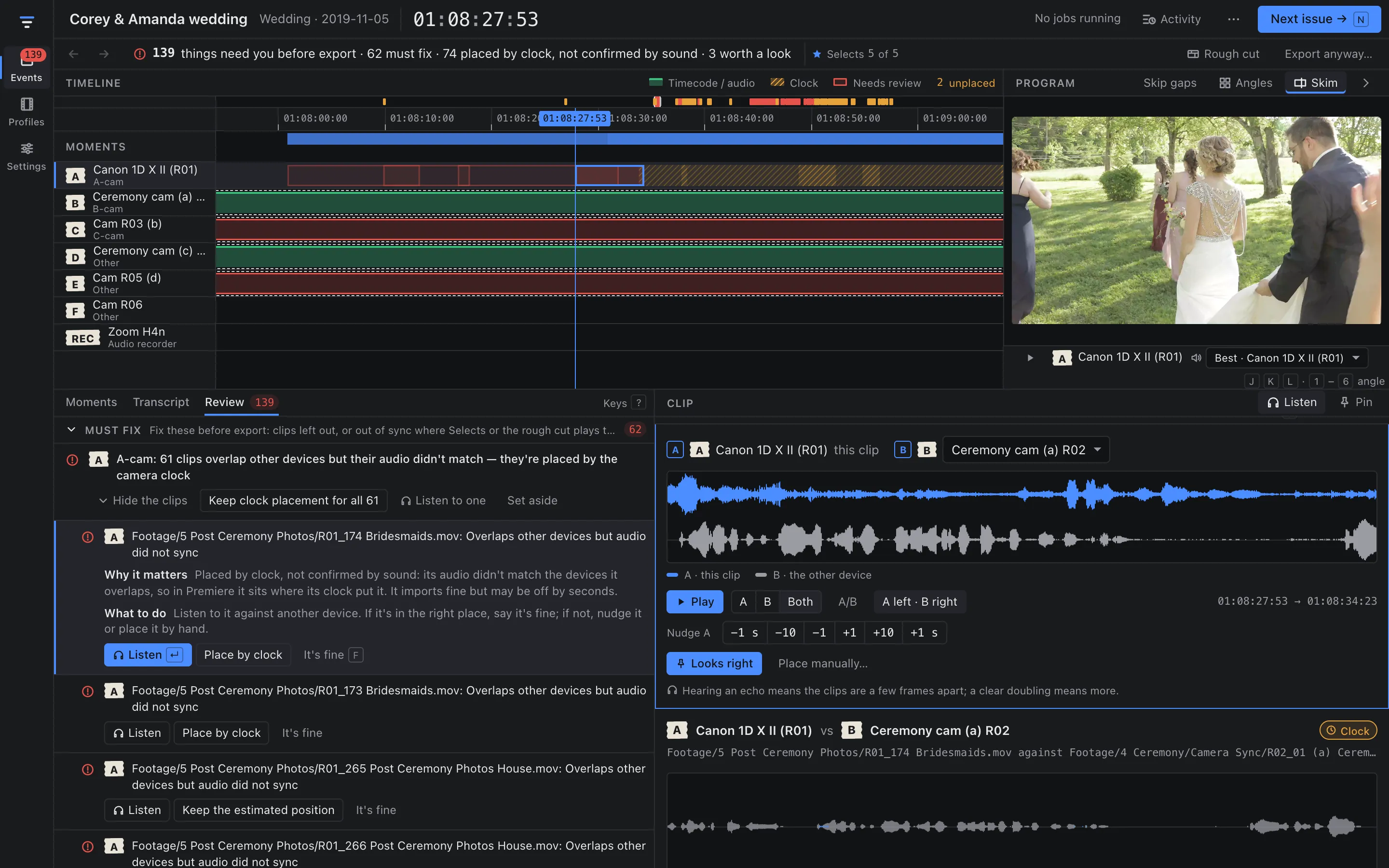
- A is this clip, B is the other device. Choose B from Compare with.
- Play A, B or Both. In Both, choose A left · B right (one in each ear) or Mixed. Hold A/B, or press X, to flip between them.
- An echo means the clips are a few frames apart; a clear doubling means more. Nudge A by −1 s, −10, −1, +1, +10 or +1 s frames until they sound as one.
- Looks right pins the placement and resolves the item in one undoable step. On a device-wide item it reads Looks right for all N clips; Pin this clip only pins just this one and leaves the item open for the rest.
The playhead and angles
The timeline has one lane per device, headed by its tape label. Colours show how each clip was placed: timecode or audio, clock, or needs review. Moment bands sit above the lanes.
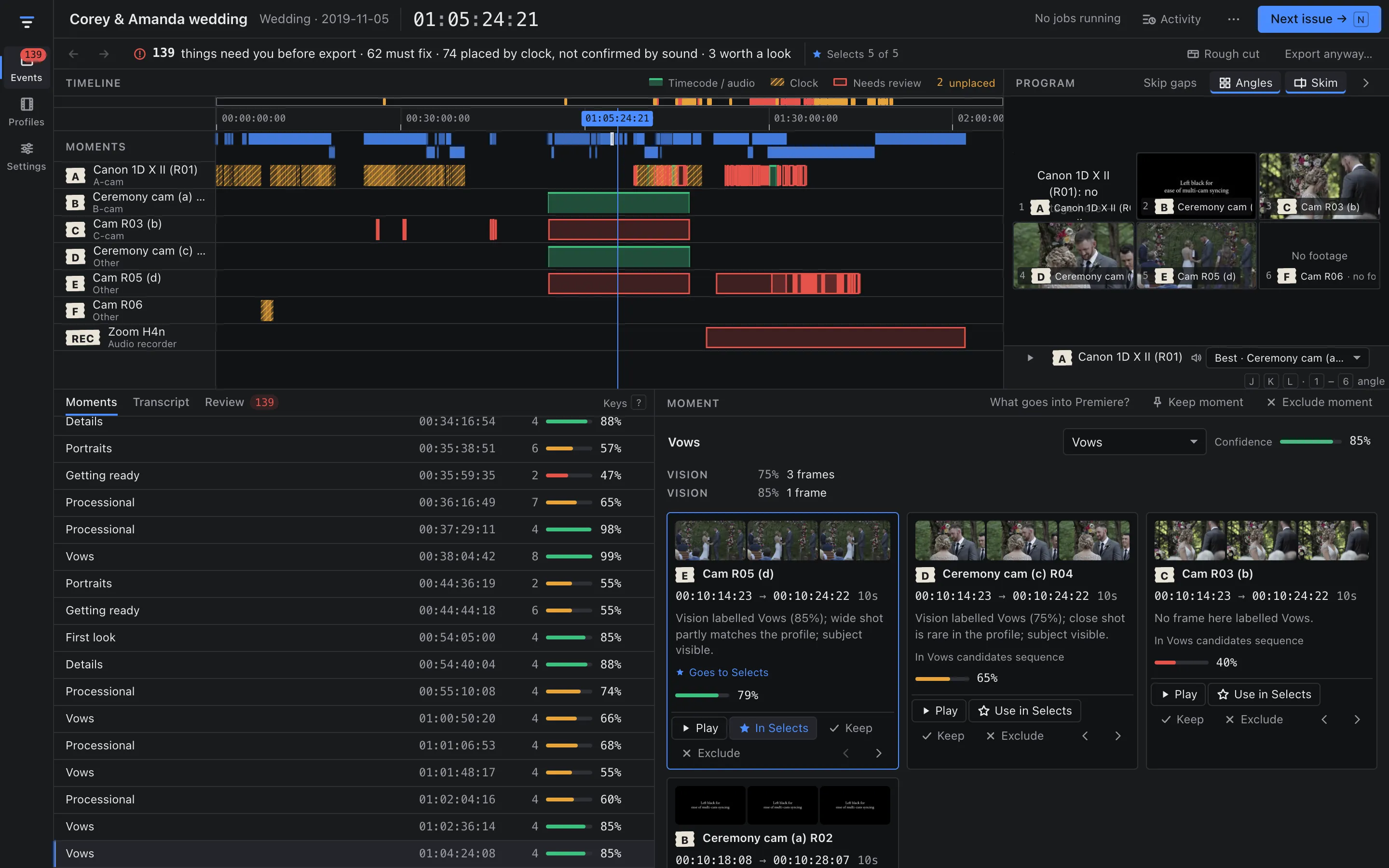
- Click the ruler or a clip to move the playhead. The Program monitor plays what was rolling there, and Program audio picks what you hear: the best source, or a device you choose.
- Turn on Angles to see every camera at the playhead. Click one, or press 1–9, to switch the program to it.
- Skip gaps jumps over stretches where the active angle has no footage.
- Skim (S) shows a clip in the viewer as you move across its thumbnail.
- ⌘= and ⌘- zoom the timeline.
J/K/L and the arrows
| Key | In Review |
|---|---|
| Space | Play or pause the program |
| J / K / L | Back / stop / forward. Press J or L again for 2×, then 4× |
| ← / → | One frame (on the timeline) |
| ⇧← / ⇧→ | One second |
| ↑ / ↓ | Previous / next edit on the active angle |
| 1–9 | Watch that angle |
When a list has focus, ↑ ↓ move through its items and ← → move between a moment’s candidates. The full list is on Keyboard shortcuts.
Moments and candidates
The Moments tab lists what Sift found, in timeline order, with a confidence meter and how many candidates each has. Select one to see its evidence (vision labels, transcript lines, sound cues) and its candidates: clips from different devices, each with frames, in and out timecode, length, a one-line reason and a confidence.
For each candidate:
- ★ Use in Selects (Enter): put this clip in the Selects sequence. It then reads In Selects. The top candidate is marked Goes to Selects until you choose.
- Keep (A): protect it from re-runs. It stays in the moment’s candidates sequence.
- Exclude (R): leave it out of the export. Undo puts it back.
- ⌥← / ⌥→ move the candidate’s range earlier or later.
For the moment itself: Keep moment, Exclude moment, change its type from the menu, or rename it. What goes into Premiere? shows where the moment will land in the export.
The Transcript tab searches everything that was said (/). Takes appears when Sift grouped repeated takes; B makes one the best take.