Docs · Cut an event
Rough cut
Plan a cut in your channel's style, change its structure and length, trim, lock, swap angles, and cut it to a song.
The rough cut is a first edit of the event, planned from its moments, shots and sound to match a style profile. Open it from Review with Rough cut. It goes to Premiere as its own sequence, first in the project.
Plan it
The first time, pick a style profile: “the rough cut copies that channel’s structure, pacing and shot mix.” Press Plan the rough cut. If you don’t have a profile yet, Make a profile, or Plan from the genre’s defaults instead.
The event must have run first: the rough cut is built from its moments, shots and sound.
Structure and length
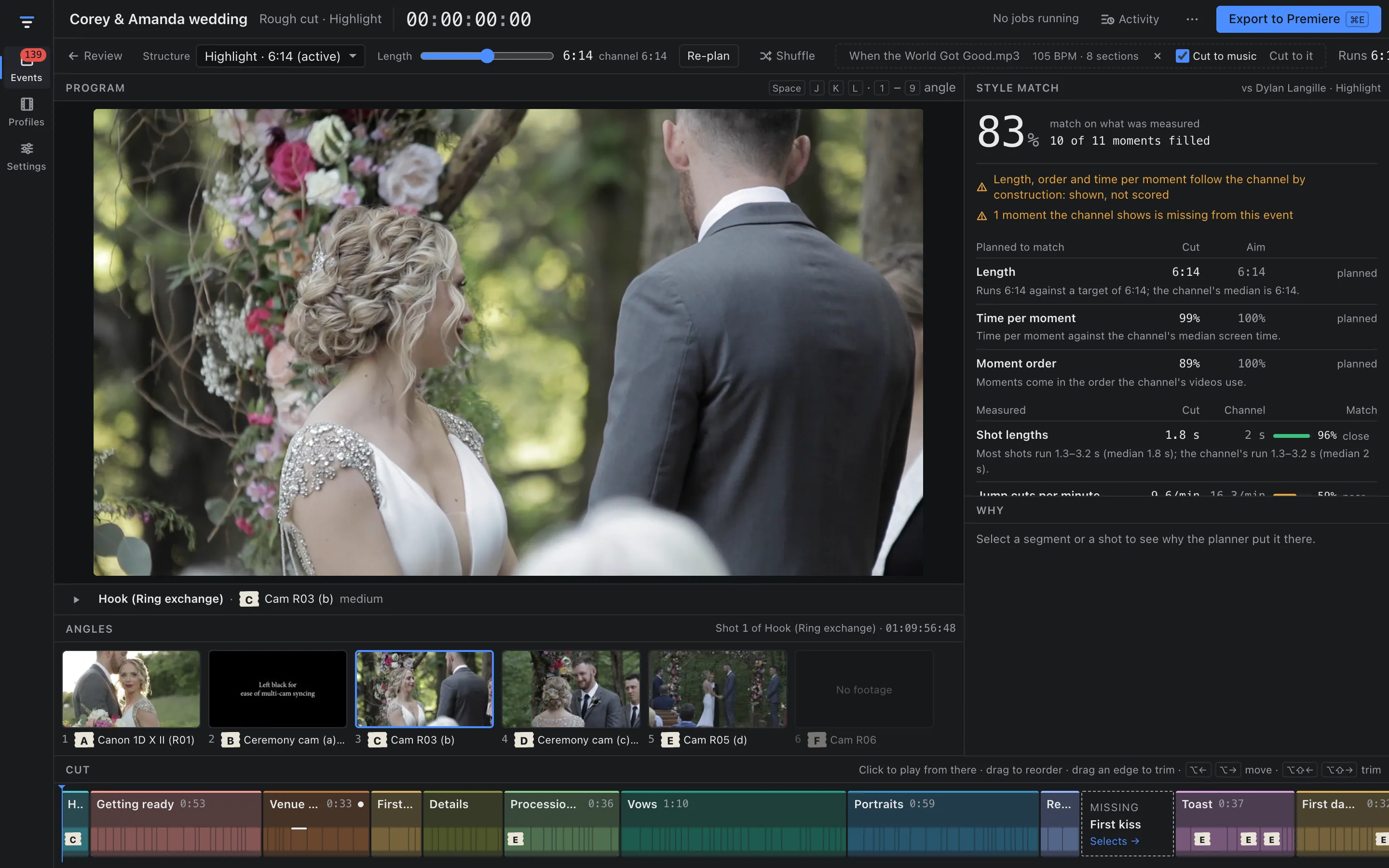
- Structure picks which kind of video to make, from the kinds the profile found (for weddings: Highlight, Ceremony or Teaser). The time next to each is its typical length.
- Length (the Target length slider) sets how long the cut should run. Channel length puts it back to the channel’s typical length. The readout shows the cut’s length next to the channel’s.
- Runs 6:14 in the toolbar is the cut’s actual length.
The planner fills the length in the order the channel uses, giving each moment its usual share of screen time. If the event has no footage for a moment the channel shows, the strip shows a MISSING slot for it, with a link to Selects.
Re-plan and Shuffle
- Re-plan plans again with the same seed. Your edits are kept.
- Shuffle tries another plan with a new seed, for different shot choices. Your edits are kept.
Edited counts your changes (for example “2 angle swaps”). Each one is in the Activity panel and can be undone with ⌘Z.
Edit the cut
The Cut strip along the bottom holds the segments in order, each with its moment’s colour, name and length, and the tape labels of its cameras.
- Play from a point: click anywhere on the strip. Space, J K L, the arrows (a frame; with ⇧, a second) and ↑ ↓ (segment starts) work as in Review.
- Reorder: drag a segment, or select it and press ⌥← / ⌥→.
- Trim: drag a segment’s end edge, or press ⌥⇧← / ⌥⇧→ to trim by a second. Back to the planned length undoes a trim. A segment trimmed below the shortest shot the planner keeps leaves the cut and is listed as Trimmed too short, with Reset length.
- Lock: keeps a segment’s shots through re-plans. Unlock lets re-planning change it again.
- Remove: takes a segment out. It goes to the Removed list; Put back restores it.
- Swap an angle: select a shot (or let the playhead sit on one) and press 1–9, or click a camera in Angles. The swap covers the whole shot and is marked “You picked <camera>”.
- Esc clears the selection.
Why panel
Select a segment or a shot to see why the planner put it there: the moment, the shot’s reason, and the sound. The sound line is one of:
- “one continuous dialogue source under the whole segment”: a talking segment keeps one source, taken from the file whose words built it, or a recorder or lav that heard the same words. Cuts in it fall between words, never inside one.
- “each shot’s own camera sound, lowered”
- “the song, with no camera sound”
Style match
The Style match panel compares the cut with the profile.
- The headline is the match on what was measured, with how many of the channel’s moments the cut fills.
- Planned to match rows follow the channel by construction, so they are shown, not scored: Length, First key moment, Time per moment, Moment order, and Cuts on the beat when cut to music.
- Measured rows are checked after planning: Shot lengths, Jump cuts per minute, Talking to camera and Shot mix per moment. Each shows the cut, the channel, and a match score: close (80% or more), near (50% or more) or off.
- Caveats sit above the rows, such as “1 moment the channel shows is missing from this event”.
Music
Drop a song on the song slot in the toolbar, or click it to choose one. Sift accepts MP3, M4A, AAC, WAV, AIF/AIFF and FLAC. It copies the file and leaves your original alone, then shows its tempo and sections, for example “105 BPM · 8 sections” (or “no steady beat”).
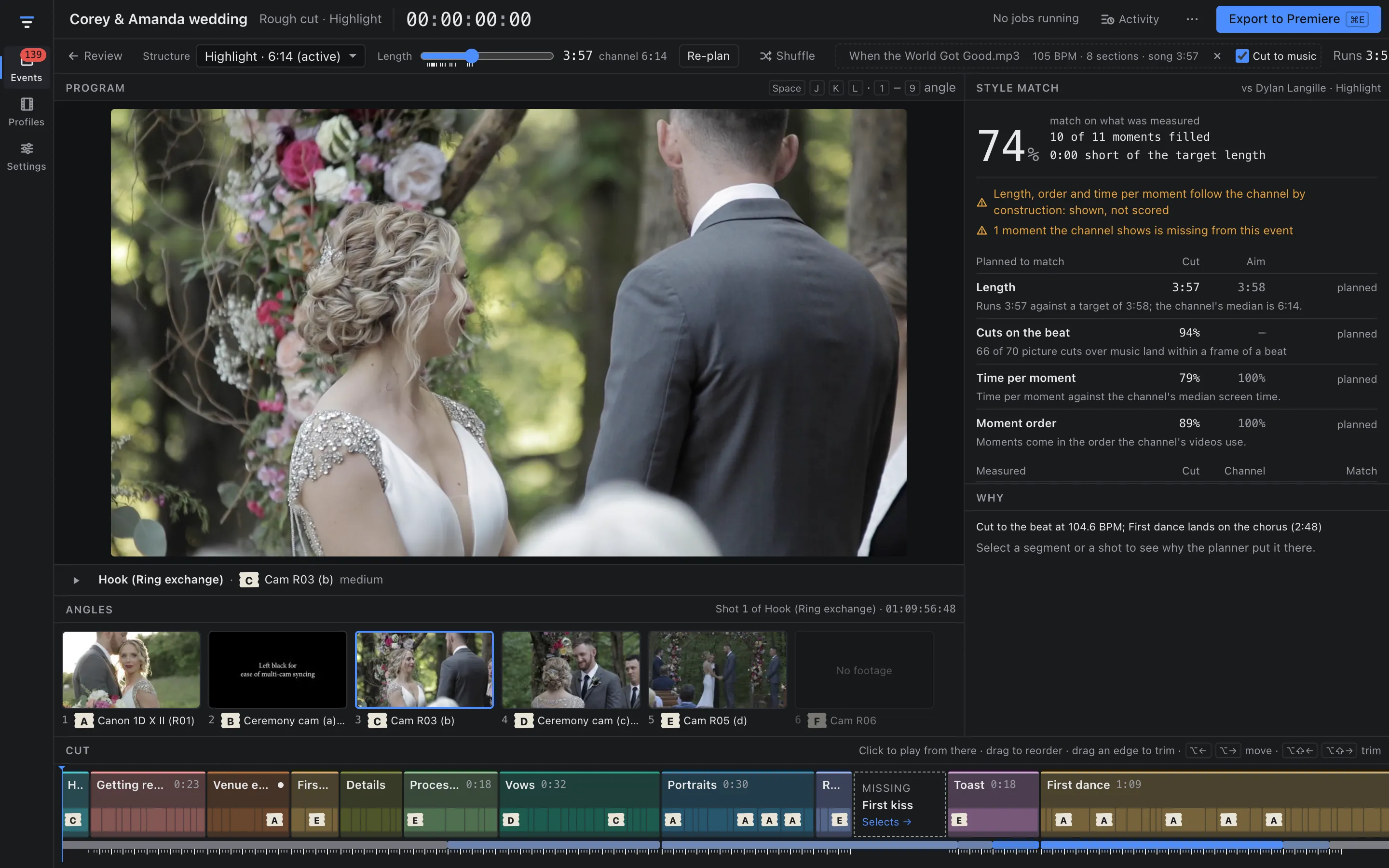
Turn on Cut to music (or press Cut to it after changing songs) and the plan follows the song:
- The song’s length sets the cut’s length. With a song, the Length slider snaps to the song’s natural stopping points.
- Moments land on the song’s sections: the climax, such as the first dance, goes on the lift or chorus.
- Picture cuts snap to beats where the footage allows. Cuts on the beat in Style match counts how many land within a frame of one.
- The music ducks under speech, so vows and toasts stay clear. The program plays the song, ducked, in sync with the cut.
- The song’s sections and beats are drawn under the cut strip, and the Why panel names the tempo and where the climax lands.
In the Premiere export, the song goes on its own stereo pair (A5–A6) with the ducking as level keyframes, and it is copied with the media when you copy media.